Product cards in a loop
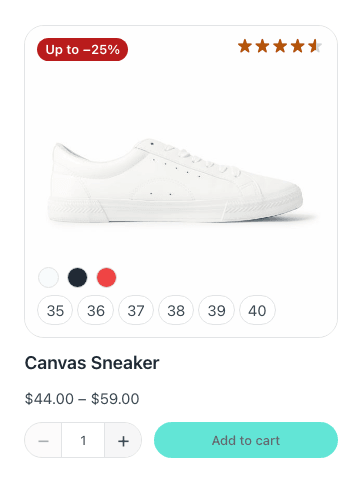
The catalogue grid, a row of featured products on the home page, the related products under a product: all of them are an Etch Loop of products drawing a card you design. There is no product-grid component, on purpose — the loop already is one. What Fancy Etch adds is what goes inside the card: the price, the badges, the stars, the stock, the variation picker and the add-to-cart button, each one for the product of its own card.
The one rule: call the item this
When you add the loop, name its item this. That is all the setup there is.
Every one of these components reads {this.fecommerce.*} out of the box — the
same values it reads on a product page — so inside a loop whose item is this,
each one follows its own card's product without setting a single prop.
Call the item anything else — product, item — and nothing tells the
components which product they are about. Rename it to this, or set on each
component the props that say «Comes from the product being shown», pointing at
your name: {product.fecommerce.id} instead of {this.fecommerce.id}.
Which loop
| Where | The loop |
|---|---|
| The shop, its categories and tags, searches, attribute pages | Etch's Main Query loop. It reuses the page's own query — its products, its order, its filters and its pages. Any other loop would ignore the filters and the pagination. |
| A home page, a landing page, a section anywhere | A WP Query loop of products, narrowed however you like. |
| Under a product: related products, upsells | See Related products. |
A WP Query loop of featured products, for example:
{
  "post_type": "product",
  "post_status": "publish",
  "posts_per_page": 8,
  "tax_query": [
    { "taxonomy": "product_visibility", "field": "name", "terms": "featured" }
  ]
}
For one category instead, the clause is
{ "taxonomy": "product_cat", "field": "slug", "terms": "hoodies" }.
Build the card
A card is ordinary Etch elements with the components placed among them. In the order the demo's card uses:
| Piece | How |
|---|---|
| Photo | An image element with src {this.image.sizes.woocommerce_thumbnail.url}, srcset {this.image.srcset} and alt {this.title}. Give it the attribute data-fe-woo-variation-image and the variation picker swaps it for the photo of the colour chosen. |
| Name and link | {this.title} and {this.permalink.full}. |
| Badges | Product Badges. Nothing to set. |
| Stars | Product Rating, inside a condition on this.fecommerce.rating, so a product nobody has reviewed leaves no empty row. Turn off Show the text beside the stars for the stars alone. |
| Price | Product Price. On a sale it shows the before-and-after pair by itself. |
| Stock | Stock Status, if the card wants it. |
| Options | Variation Picker, inside a condition on this.fecommerce.needs_selection, so only a product with something to choose carries one. Set Presentation to Swatches, compact and turn off Show the selection message: the price above already changes. |
| Button | Add to Cart, with Size preset on Compact, for a card and Show the quantity label off. |
Keep the photo, the price, the picker and the button inside the same card element. A colour chosen in a card changes that card's price and photo, and its button adds that variation: the picker looks for them within the card, up to where another product's button begins.
Good to know
- Filtering and paging without reloading needs the bar, the grid and the
pagination inside one element with
data-fe-woo-results: see The catalogue. - How many products a page shows is set once: the Main Query loop's «posts per page», or Fancy Etch → Shop.
- Product Gallery follows each card's product too, but a card usually wants one photo: a gallery in every card loads every product's pictures.