Cart
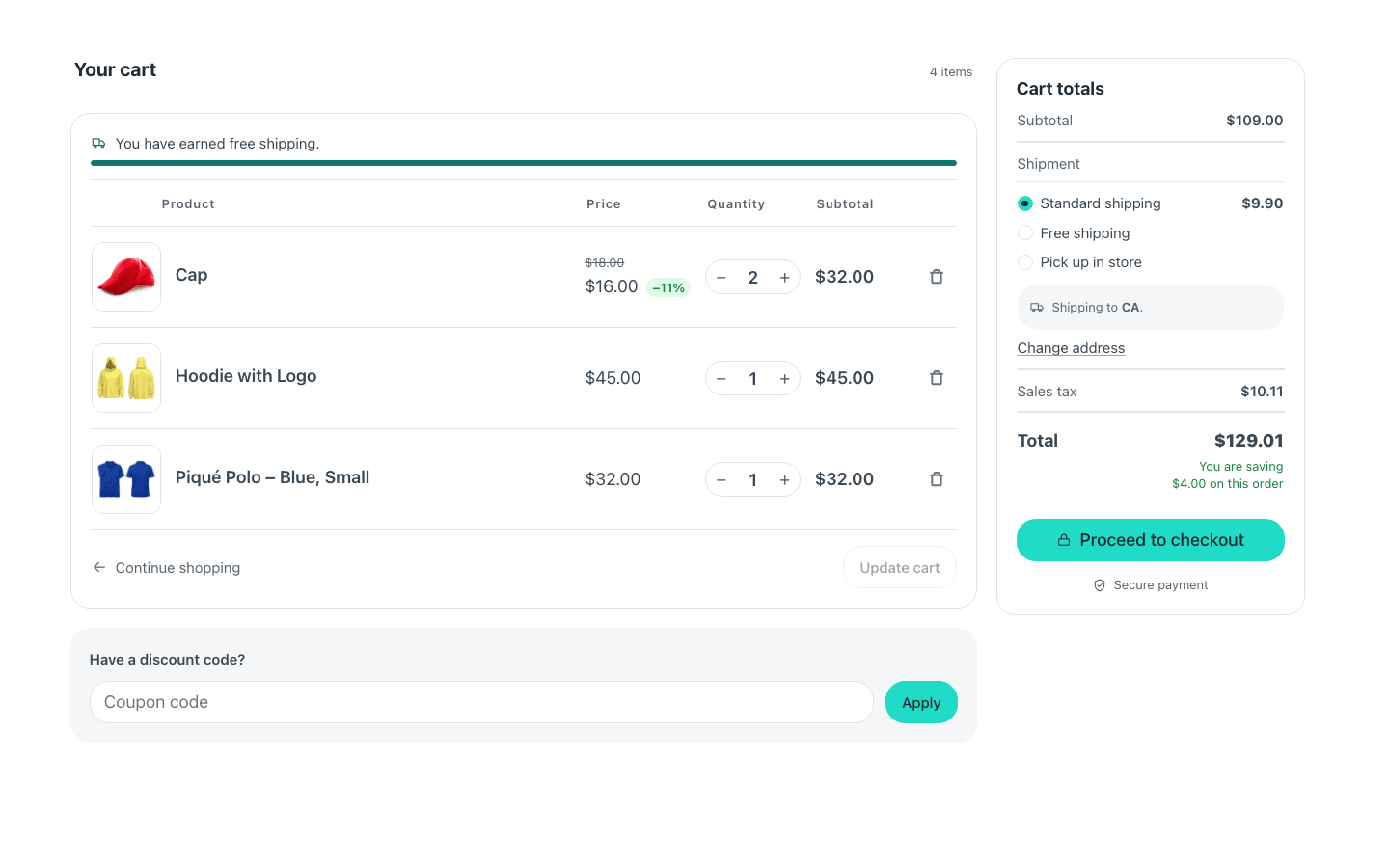
The whole cart page, re-skinned. Coupons, shipping and taxes keep working — it is WooCommerce's own machinery underneath.
It can be split: turn off Include the totals or Include the coupon field and use the separate components to lay the page out yourself.
| Component | What it is |
|---|---|
| Cart | The whole page |
| Cart Items | Just the product list |
| Cart Coupon | The discount field |
| Cart Totals | The totals and the checkout button |
Cart goes on the page WooCommerce has set as the cart. And if you use a piece, turn the same piece off on the whole component — otherwise the page has two coupon fields, and WooCommerce's own scripts look for the first one.
A discount stays in sight all the way. A line on sale shows its regular price struck through, the price paid and the percentage — "$18.00 $16.00 −11%" — and under the total, what the whole order saves. The same figures as the mini cart and the checkout, from the same arithmetic, so the three never disagree about one product. WooCommerce's own cart shows only the price paid. The sentence under the total is the one you write once in Fancy Etch → Shop → Savings wording.
Saving a quantity change
By default, changing a quantity presses "Update cart" for the shopper a moment later, so nobody loses a change by walking away without pressing it — the mini cart already behaves this way. It is WooCommerce's own update that runs, with its hooks and its coupons, and the button stays where it is for whoever looks for it. Turn it off under Fancy Etch → Shop to keep the classic behaviour.
Props
| Prop | Type | Default | What it does |
|---|---|---|---|
| Include the totals | on / off | on | On by default, where WooCommerce puts them. Turn it off only if you are placing the Cart Totals component somewhere else on the page — otherwise the page ends up with two. |
| Include the coupon field | on / off | on | On by default, under the cart table. Turn it off if you are placing the Cart Coupon component somewhere else on the page: two coupon fields share the same id, and WooCommerce reads whichever one comes first in the document. |
| Colors → Card background | text | var(--fe-woo-surface, #ffffff) | |
| Colors → Borders | text | var(--fe-woo-border, #e8ebef) | |
| Colors → Buttons | text | var(--fe-woo-accent, #111d2e) | |
| Colors → Button text | text | var(--fe-woo-accent-color, #ffffff) | |
| Colors → Buttons on hover | text | var(--fe-woo-accent-hover, color-mix(in srgb, var(--fe-woo-cart-accent, #111d2e) 85%, var(--fe-woo-cart-accent-color, #ffffff))) | |
| Colors → Button text on hover | text | var(--fe-woo-accent-color-hover, var(--fe-woo-cart-accent-color, #ffffff)) |
Variables of its own
| Variable | Default | What it controls |
|---|---|---|
--fe-woo-cart-thumbnail-size | 4.5rem | The product photo on each line. |
--fe-woo-cart-header-size | var(--fe-woo-text-xs, 0.75rem) | The table's column headings. |
--fe-woo-cart-remove | #6b7280 | The × that takes a line out. |
--fe-woo-cart-sale-bg | #dcfce7 | The badge beside a price that is on sale («−11%»). |
--fe-woo-cart-sale-color | #15803d | Its text. |
--fe-woo-cart-positive | var(--fe-woo-success, #15803d) | The line under the total saying what the order saves. |
--fe-woo-cart-progress | #0f766e | The bar of a free-shipping goal. |
--fe-woo-cart-track | var(--fe-woo-border, #e8ebef) | The unfilled part of that bar. |
--fe-woo-cart-column | 20rem | How wide the totals column is beside the list. |
--fe-woo-cart-max-width | none | A ceiling for the whole cart. none lets it fill its container. |
The pieces
Placed on their own, to lay the cart page out yourself. They read the same variables as the whole component.