The account area
One component for every screen: login and register, dashboard, orders, addresses, downloads and account details.
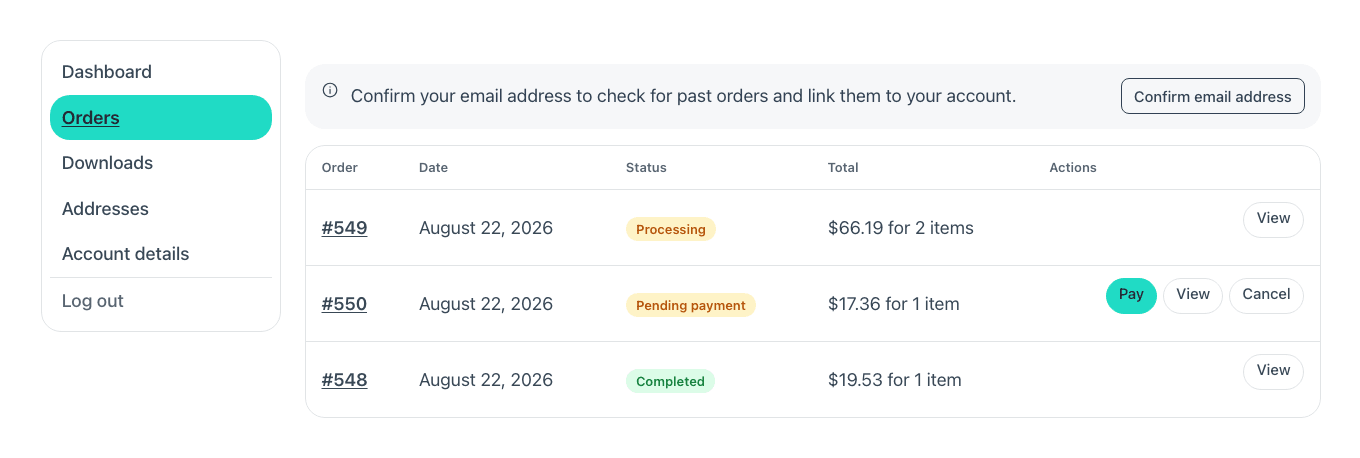
WooCommerce picks the screen from the URL, so this one component draws all of them. The sidebar, the dashboard, the orders table, the address forms and the downloads are all re-skinned.
Account only works on the page WooCommerce has set as "My account". On any other page every one of its endpoints answers 404 — the builder panel says so when you place it.
Login and register
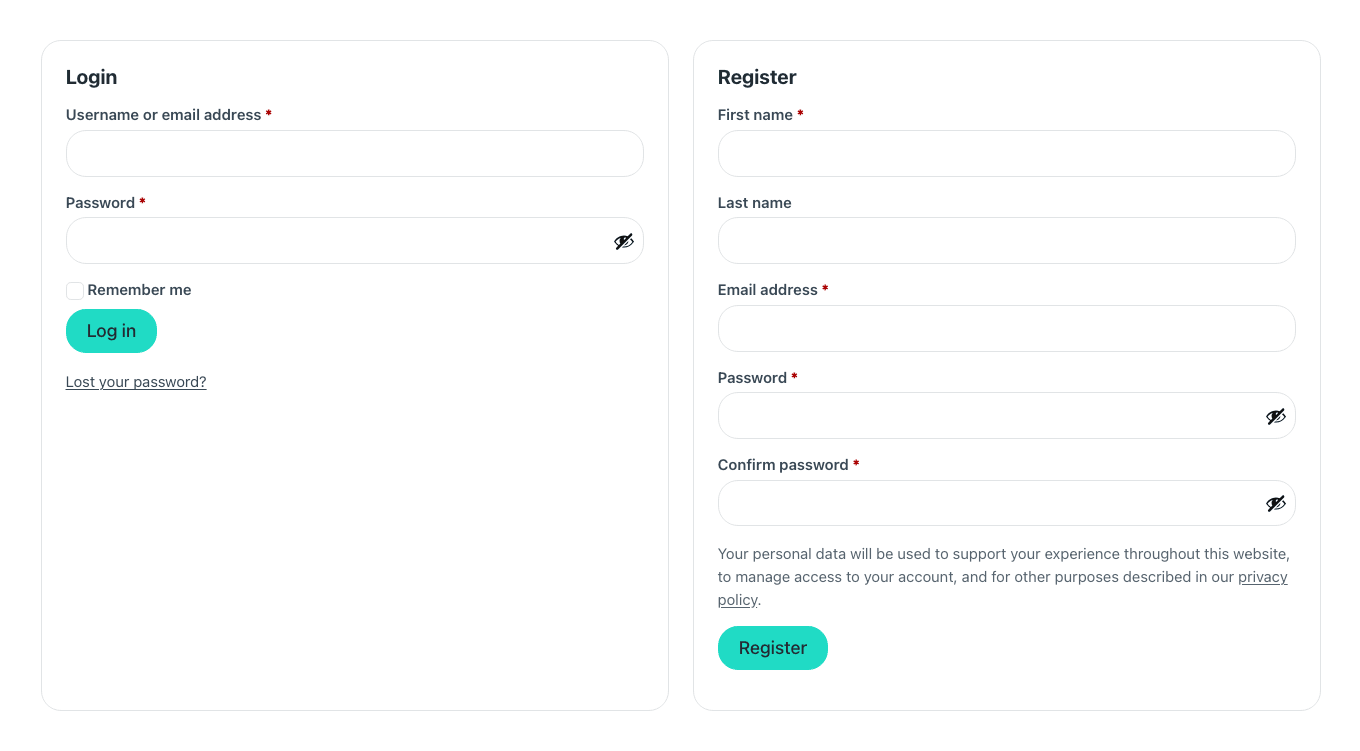
Anybody who has not signed in sees this on the account page: logging in on one side, creating an account on the other. They are WooCommerce's own forms — the same fields, the same checks, and every plugin that hooks into them keeps working — dressed like the rest of your shop.
- The register card only shows when the shop allows it, in the account creation options of WooCommerce → Settings → Accounts & Privacy. With it off, the login stands alone in a single card.
- What the form asks for follows those same settings: a username field when the email is not the username, and a password box — or a line saying a link to set one will be emailed.
- The name fields and the second password box are the plugin's, switched on in Fancy Etch → Shop: Signing up.
- The eye in each password box shows what was typed. It is WooCommerce's own button, styled to match the fields.
- The privacy line above «Register» is the text you set for registration in WooCommerce → Settings → Accounts & Privacy.
To style it while you build, set Screen to preview to login.
Previewing a screen while you build
The canvas cannot log anybody in, so the component has a Screen to preview prop: pick any of the seven and style it without leaving the editor.
Each screen can also have a look of its own. Select the Account component, open
its class — .fe-woo-account-embed — in Etch's CSS panel, and nest a rule for
that screen:
/* Only on the address forms */
&:has([data-fe-woo-screen="edit-address"]) {
  --fe-woo-account-page: var(--white);
}
The screens are the same seven as in Screen to preview: dashboard,
orders, view-order, downloads, edit-address, edit-account and login.
Its options

One prop and a colour group: pick the screen you want to see while you build, and the colours already read your shop tokens.
Props
| Prop | Type | Default | What it does |
|---|---|---|---|
| Colors → Card background | text | var(--fe-woo-surface, #ffffff) | |
| Colors → Borders | text | var(--fe-woo-border, #e8ebef) | |
| Colors → Buttons | text | var(--fe-woo-accent, #111d2e) | |
| Colors → Button text | text | var(--fe-woo-accent-color, #ffffff) | |
| Colors → Buttons on hover | text | var(--fe-woo-accent-hover, color-mix(in srgb, var(--fe-woo-account-accent, #111d2e) 85%, var(--fe-woo-account-accent-color, #ffffff))) | |
| Colors → Button text on hover | text | var(--fe-woo-accent-color-hover, var(--fe-woo-account-accent-color, #ffffff)) | |
| Screen to preview | choice: dashboard, orders, view-order, downloads, edit-address, edit-account, login | dashboard | One block, every account screen: WooCommerce picks which from the URL. All of them are behind a login — and the login screen itself is what every visitor who has not signed in sees — so this is how they get looked at while you style them. The orders list is where the three status badges are. It changes nothing on the site. |
Variables of its own
| Variable | Default | What it controls |
|---|---|---|
--fe-woo-account-page | var(--fe-woo-panel, #f6f7f9) | The page behind the account panel. |
--fe-woo-account-nav-active | var(--fe-woo-accent, #111d2e) | The background of the screen you are on, in the sidebar. |
--fe-woo-account-nav-active-color | var(--fe-woo-accent-color, #ffffff) | Its text. |
--fe-woo-account-positive | var(--fe-woo-success, #15803d) | «Completed», «Processing» — a good order status. |
--fe-woo-account-positive-bg | var(--fe-woo-success-soft, #dcfce7) | The pale background behind it. |
--fe-woo-account-warning | var(--fe-woo-warning, #b45309) | «On hold», «Pending payment». |
--fe-woo-account-warning-bg | var(--fe-woo-warning-soft, #fef3c7) | Its background. |
--fe-woo-account-invalid | var(--fe-woo-danger, #b91c1c) | «Failed», «Cancelled», and a field to correct. |
--fe-woo-account-invalid-bg | var(--fe-woo-danger-soft, #fee2e2) | Its background. |
--fe-woo-account-neutral | #374151 | «Refunded», «Draft» — over, and neither good nor bad. |
--fe-woo-account-neutral-bg | var(--fe-woo-panel, #f3f4f6) | Its background. |