Etch improvements
Fancy Etch also improves Etch itself — the builder you work in and the pages it builds, shop or no shop. Each improvement has its own switch in Fancy Etch → Etch, in the card of the part of Etch it changes, and each one is also a filter for a site that prefers to set it in code.
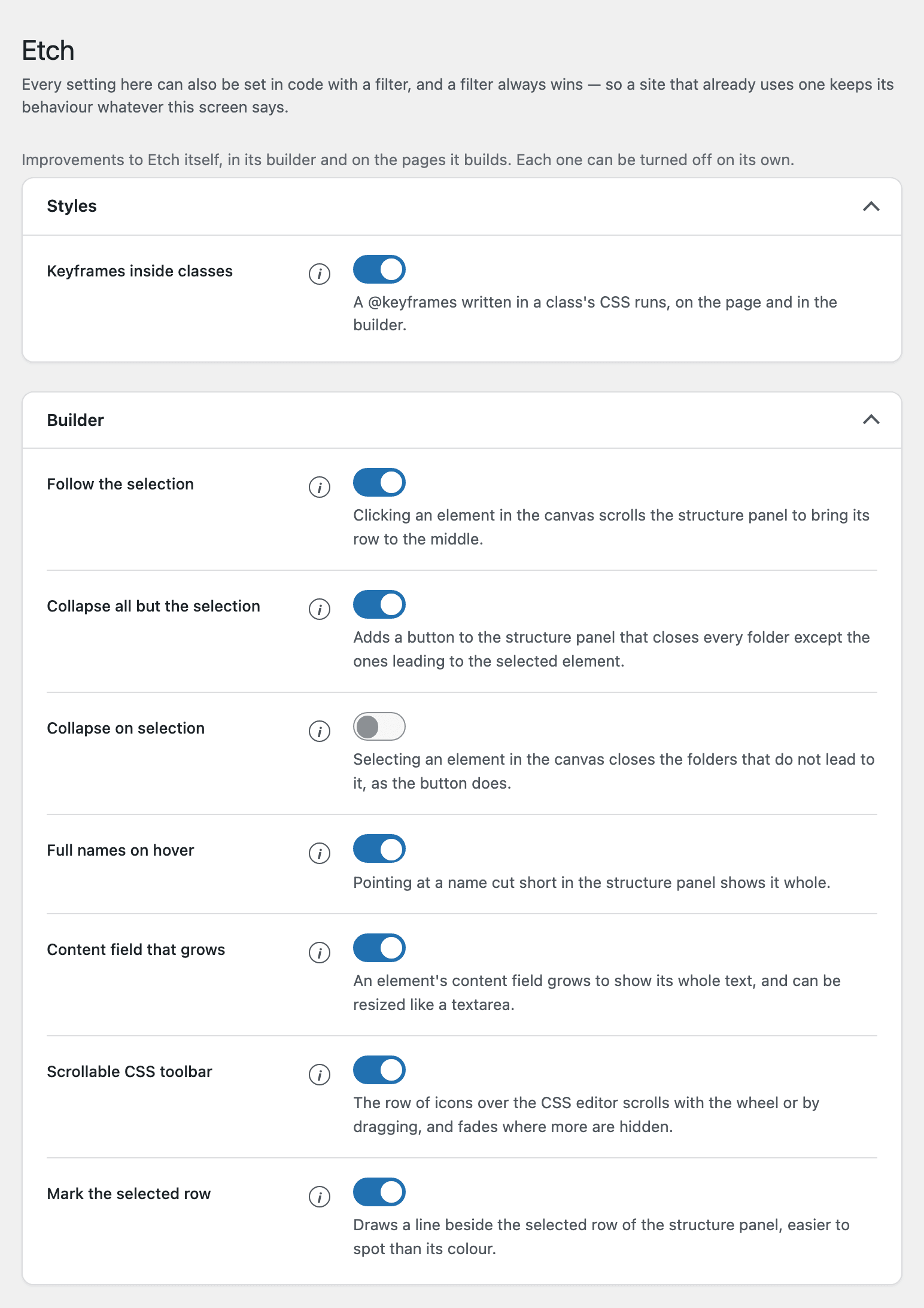
| Improvement | Card | What it changes |
|---|---|---|
| Keyframes inside classes | Styles | A @keyframes written in a class's CSS runs, on the page and in the builder |
| Follow the selection | Builder | Clicking an element in the canvas scrolls the structure panel to bring its row to the middle |
| Collapse all but the selection | Builder | Adds a button to the structure panel that closes every folder except the ones leading to the selected element |
| Collapse on selection | Builder | Selecting an element in the canvas closes the folders that do not lead to it, as the button does |
| Full names on hover | Builder | Pointing at a name cut short in the structure panel shows it whole |
| Content field that grows | Builder | An element's content field grows to show its whole text, and can be resized like a textarea |
| Scrollable CSS toolbar | Builder | The row of icons over the CSS editor scrolls with the wheel or by dragging, and fades where more are hidden |
| Mark the selected row | Builder | Draws a line beside the selected row of the structure panel, easier to spot than its colour |
All of them are on until you turn them off, except Collapse on selection, which is off until you turn it on.
Every one of these is either a stylesheet loaded in the builder or a script that moves the builder's own controls. Your templates, your styles and your content are not touched, and turning one off puts Etch back exactly as it was.
Keyframes inside classes
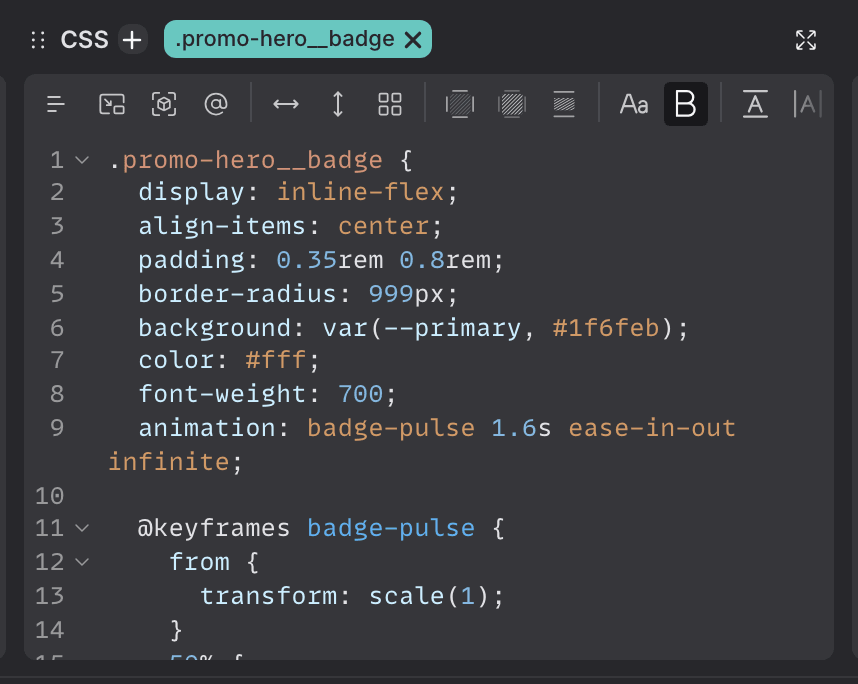
Etch writes a class's CSS inside its selector, and a browser throws away a
@keyframes it finds there — which is why an animation used to need a
stylesheet of its own in the Style Manager. With this on, write it in the class
that uses it and it runs, on the page and in the builder's canvas.
The rules, the traps and what travels with a template are in the
Quickstart. Turned off, a @keyframes
inside a class is ignored again, as in Etch on its own.
The structure panel
Follow the selection
Clicking an element in the canvas brings its row to the middle of the panel, so the rows around it show too — unless it is already near the middle, so the panel does not keep moving while you click between neighbours. At the very start or end of a list it gets as close as the panel can scroll.
Selecting a row in the panel itself never scrolls it. Etch already opens the folders around the row you clicked; this is what brings it into sight — also when you click an element that was already selected, after closing one of its folders or scrolling the panel away.
Mark the selected row
Etch shows the selected row only by making its colour a little lighter, which is hard to see — in a list of components, all the same colour, hardly at all. This draws a line just outside the row, on its left, the height of the row.

To make room for it beside the top-level rows, the whole tree sits 12 pixels further right while this is on; nothing jumps when you select.
Collapse all but the selection
The button beside Etch's own Fold, at the top of the panel — the one in the picture above. It closes the open folders that do not lead to the selected element and brings its row to the middle; the folders inside the ones it closes keep how you left them. Which folders are open is not saved with the page. With nothing selected, the button is unavailable.
Collapse on selection, once you turn it on, does the same by itself every time you click an element in the canvas. Selecting a row in the panel collapses nothing, so the folders you open while moving around the tree stay open; the button is still there for when you want to tidy it up.
Full names on hover
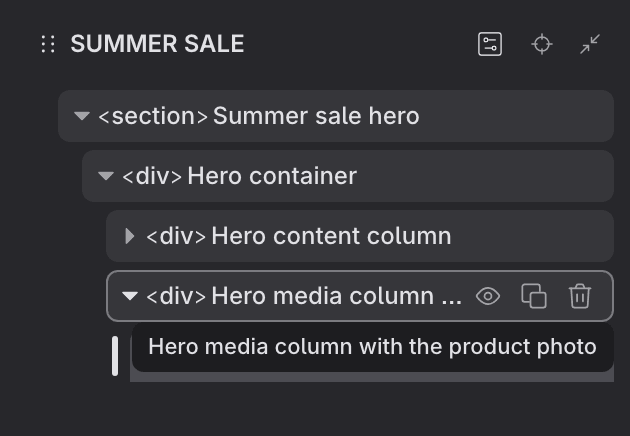
A name that ends in «…» shows whole, in a tooltip, while you point at it — only the names that are actually cut short.
The Content field that grows
An element's Content box is a single line in Etch, so a long text is cut at the edge and can only be read by moving the cursor through it. With this on it grows with the text, up to ten lines, and has a handle to make it taller — like the text fields of a component's properties.
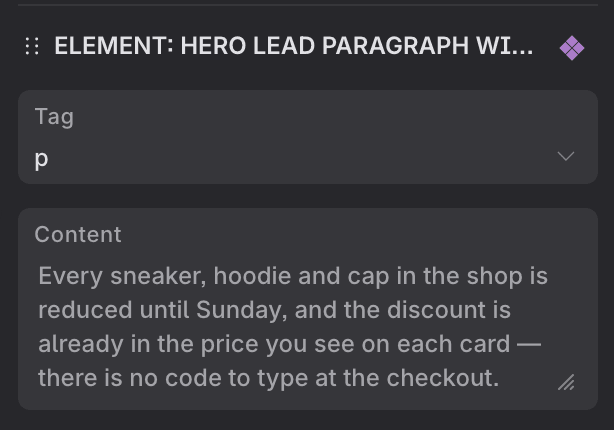
The content is still one line: Enter adds no line break, and a pasted one becomes a space. What you type goes through Etch's own field, so undo, redo and saving work as they always did.
The CSS toolbar you can reach
In a narrow pane most of the icons over the CSS editor are out of sight, and Etch hides that row's scrollbar, so a mouse wheel does nothing. With this on the wheel moves the row sideways, you can drag it — a drag does not press the button it starts on — and the edge fades while there are more icons on that side.
Turning them off, in code
Every switch has a filter, and the filter wins: what the screen saved is
only its default. Useful for a site that keeps its settings in wp-config.php
or in a plugin, and for turning something off for everybody but you.
// No line beside the selected row on this site.
add_filter( 'fancy_etch/etch/selection_mark', '__return_false' );
| Improvement | Filter |
|---|---|
| Keyframes inside classes | fancy_etch/etch/keyframes |
| Follow the selection | fancy_etch/etch/structure_follow |
| Collapse all but the selection | fancy_etch/etch/collapse_others |
| Collapse on selection | fancy_etch/etch/collapse_auto |
| Full names on hover | fancy_etch/etch/row_titles |
| Content field that grows | fancy_etch/etch/content_field |
| Scrollable CSS toolbar | fancy_etch/etch/css_toolbar_scroll |
| Mark the selected row | fancy_etch/etch/selection_mark |
Each one takes a boolean and nothing else.